.png?width=400&height=133&name=TRUE%20STONE%20LOGO%20(1).png)


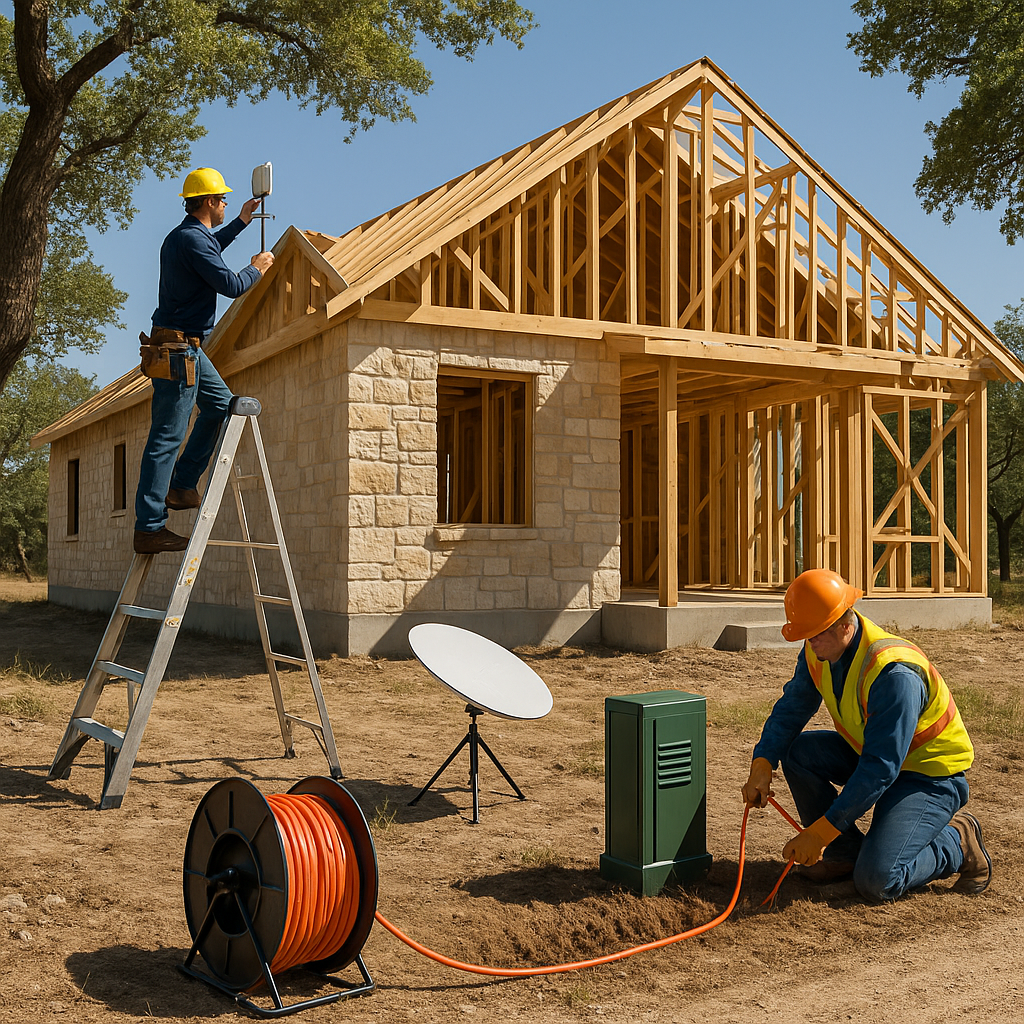
A Hill Country guide to fiber, fixed‑wireless, and satellite—with wiring tips that future‑proof your rural home.
Compare fiber, fixed wireless, and satellite for reliability
If you’re building on your own lot in the Texas Hill Country, start your internet plan as early as your power plan—because the options and timelines vary dramatically by location. First, check actual coverage instead of relying on ads. Use the official FCC map to see which providers claim service at your address and what technologies (fiber, cable, DSL, fixed wireless, satellite) are available; zoom to your parcel and compare layers here: FCC National Broadband Map. Next, look at Texas’s statewide broadband office for grant‑funded buildouts and provider contacts by county; the state maintains a hub with program updates and planning maps at Texas Broadband Development Office. These two sources ground your decisions in real, verifiable data. What to expect by tech type in the Hill Country: - Fiber: Best reliability and speed when available. In some pockets (smaller towns and rural co‑ops), fiber is expanding rapidly. Where a co‑op or local provider runs fiber (for example, regional providers like Hill Country‑focused telcos), service can be excellent. If you’re in an HCTC area, explore their offerings at Hill Country Telephone Cooperative (HCTC). - Fixed wireless: A great middle option when fiber/cable aren’t present. A small antenna on your roof points to a nearby tower for 50–300+ Mbps under clear line‑of‑sight. Performance depends on terrain, trees, and tower congestion—ask for a site survey before you pour the slab so conduit and power can be planned for the antenna location. - Satellite: Starlink and newer LEO services have reshaped rural internet with low‑latency links compared to legacy satellite. It’s the most location‑agnostic option and a strong backup even if you get fiber later. For equipment, plans, and coverage footprint, see Starlink internet. Budget realities: fiber drops may involve construction charges if your driveway is long or your lot sits far from the route; fixed‑wireless gear is modest but needs clean sightlines; satellite requires sky exposure and a good mounting point. Build this into your site plan early so internet doesn’t become a last‑minute compromise.
Plan conduit, cabling, and Wi‑Fi for whole‑property coverage
Treat connectivity like another utility that serves the whole property. From the curb (or pedestal) to your network closet, plan for both today’s service and tomorrow’s upgrades. At minimum, run a dedicated, sweep‑radius conduit from the service entry to your structured media panel with a pull string and gentle bends—2‑inch is ideal for easy future pulls. If your driveway is long, add a second empty conduit for redundancy and future services (fiber, security, gate controls). Where you expect outbuildings or a detached garage/casita, trench a conduit corridor now to avoid re‑cutting rock later. Inside the home, standards prevent headaches. Follow the latest residential telecom standard for structured cabling so every room and access point is wired cleanly; see an overview here: ANSI/TIA‑570‑E overview. Home‑run Cat6 (or better) to each TV, office, and ceiling‑mounted Wi‑Fi access point; pull coax to TV locations for redundancy; and centralize everything in a ventilated panel with power, a PoE switch, and a UPS. Ceiling‑mounted access points in halls or great rooms deliver even coverage; avoid hiding them in closets or metal enclosures. For outdoor coverage, pre‑plan eave‑mounted cameras and access points (PoE), gate intercoms, and any detached‑building links. If you have a long driveway or a gated entry, run fiber or Cat6A in conduit between the house and gate; hard links beat Wi‑Fi bridges for reliability in storms and heat. At porches and patios, prefer shielded, warm‑spectrum lighting to preserve night skies and avoid RF noise near antennas. Don’t forget power: provide dedicated outlets for your modem/router and PoE switch on a small UPS so you keep connectivity during short outages. Label every run, photograph walls before drywall, and keep a network diagram in your homeowner binder so service calls are fast and painless.
Contracts, permits, and resilience for storm‑ready internet
Paperwork and resilience determine how well your internet performs after the first big storm. If a provider needs permits or easements to extend lines, start the process early and coordinate with utility trenching so cuts happen once. Some providers offer “construction coordination” for long drops—ask about bore vs. trench options across your drive and where the demarcation point will land. If you’re relying on fixed wireless or satellite, pick mounting points with clear sky views year‑round (leaf‑on, not just winter) and run both power and Ethernet to those locations in advance. Contracts and service levels matter. Compare data caps, throttling policies, static IP availability (for remote cameras/automation), and equipment fees. Save copies of provider maps from the FCC and the state broadband office in your project folder as documentation for appraisers and future buyers. Consider a backup. Many Hill Country homes combine Starlink with a fixed‑wireless or fiber service, using dual‑WAN routers to fail over automatically. For disaster scenarios, put your modem/router and ONT on a UPS and coordinate with any whole‑home backup power so the network closet stays energized. Where internet installation intersects with local permits (e.g., trenching in a right‑of‑way), rely on the city/county pages linked above and your builder’s relationships to speed approvals. Finally, watch grant and buildout updates. Providers frequently expand in areas targeted by federal/state programs; Texas summarizes its broadband initiatives and county‑level contacts here: Texas Broadband Office programs and maps. With a site‑first plan, clean conduit, and realistic expectations by technology, your rural home can have city‑grade connectivity—and a plan B when storms roll through.